
Try PlayParty.io Right Now (Free & Instant)
Start a synchronized watch room in seconds and watch together with friends.
At a Glance
- Standard Twitch live streams drift by 3 to 10 seconds between viewers due to differing buffer times.
- PlayParty.io locks playback across all viewers so everyone sees the action simultaneously.
- Friends can join on any device, watch in frame-accurate sync, and talk via built-in voice chat without third-party apps.
Watching live gaming tournaments and streamers with friends is great until one person sees the clutch play 5 seconds earlier and yells in celebration. Because Twitch delivers video in variable chunks, viewer latency naturally drifts between 3 to 10 seconds (Twitch low latency video). Here is how to synchronize live Twitch broadcasts with built-in voice chat so everyone sees and discusses the action at the exact same millisecond.
Why Twitch Feeds Drift Apart in Voice Calls
Visit WebsiteTwitch streams video in continuous segments using HTTP Live Streaming (HLS). Depending on your internet provider, connection health, and device speed, each viewer downloads chunks at slightly different intervals (Twitch broadcast dashboard).
In fast-paced esports like CS2, Valorant, League of Legends, or Dota 2, this latency difference ruins the excitement of live tournament matches.
- Unpredictable 3–10s drift between viewers on standard Twitch feeds (Twitch's Normal Latency mode adds 10-15s buffer; Low Latency mode reduces this to 2-5s per Twitch low latency video)
- Voice chat spoilers during live tournament rounds and tournament clutch moments
- Audio desynchronization when multiple participants try to stream the broadcast simultaneously
When one friend on a faster connection sees the bomb defusal or team wipe 5 seconds early, audio chatter immediately spoils the round for everyone else.
How PlayParty.io Synchronizes Live Twitch Feeds with Built-In Voice
Visit Website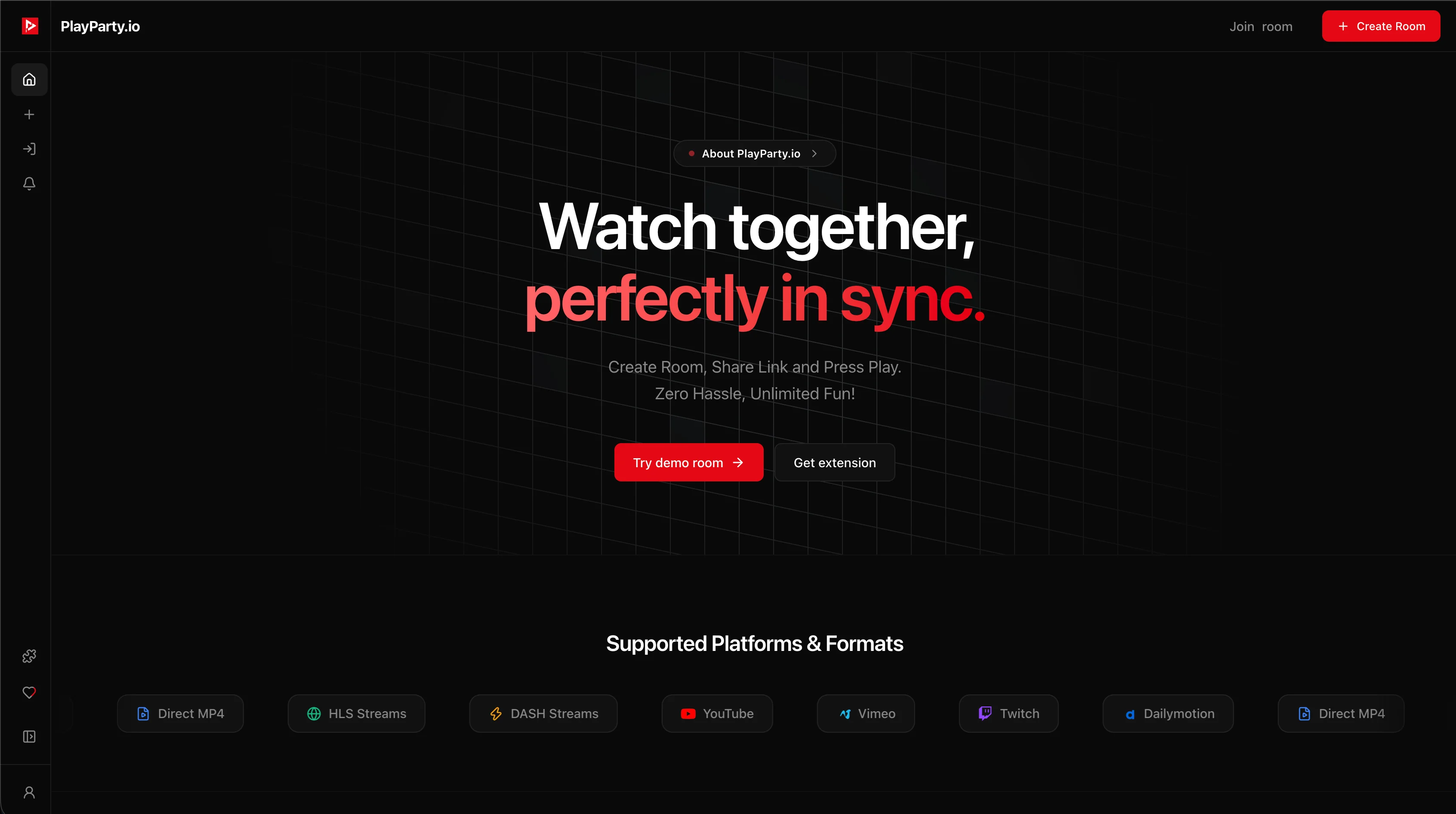
PlayParty.io embeds live Twitch broadcasts inside a real-time synchronized room with native voice chat. The host pastes the Twitch channel or VOD link (for example, https://twitch.tv/eslcs).
PlayParty aligns the playback clock across all connected viewers in real time while providing instant, browser-based microphone chat.
- Step 1: Open PlayParty.io and click 'Create Room'
- Step 2: Paste the Twitch channel link into the media bar
- Step 3: Click 'Share' to copy your room link and send it to your squad
- Step 4: Watch live esports in perfect sync and talk with built-in voice chat
Viewers do not need to link personal Twitch accounts, install browser extensions, or download separate calling apps to watch and talk in sync.
When Discord or Twitch Native Watch Mode Works Better
For small groups already in a Discord server, Discord's screen share can work for casual esports viewing, though it caps at 720p 30fps on free accounts (Discord Nitro).
Twitch also offers a built-in 'Stream Together' feature that lets streamers collaborate live with guests (Twitch Stream Together). If your group is already on Twitch, this native option requires no third-party tool.
PlayParty's real-time sync (vs. periodic sync) matters most for fast-paced esports where a 2-3 second delay can spoil clutch moments. For casual stream watching, the difference is less noticeable.
Conclusion
Synchronizing Twitch on PlayParty eliminates tournament spoilers and provides built-in voice chat so online co-watching feels like sitting on the same couch. For groups who primarily watch casual streams rather than competitive esports, Discord's built-in screen share or Twitch's native Watch Party feature may be simpler options.